
- Published
- Editorial review
On this pageSections: 10
Sources and editorial review: 10 November 2026.
A product video has a job: help the right person understand an offer and take a useful next step. Google’s Veo models and newer Gemini Omni tools can help create or alter short scenes, but the output is raw production material. It still needs a brief, factual checks, an edit, channel-specific versions and review by the people responsible for the brand.
This guide follows the move from Veo 3 to the newer controls available for business video production. Product names, features and credit costs change. Before buying a plan or promising a deliverable, check the current selector, terms, territory and entitlement for the exact account you will use.
What changed from Veo 3 to the current workflow?
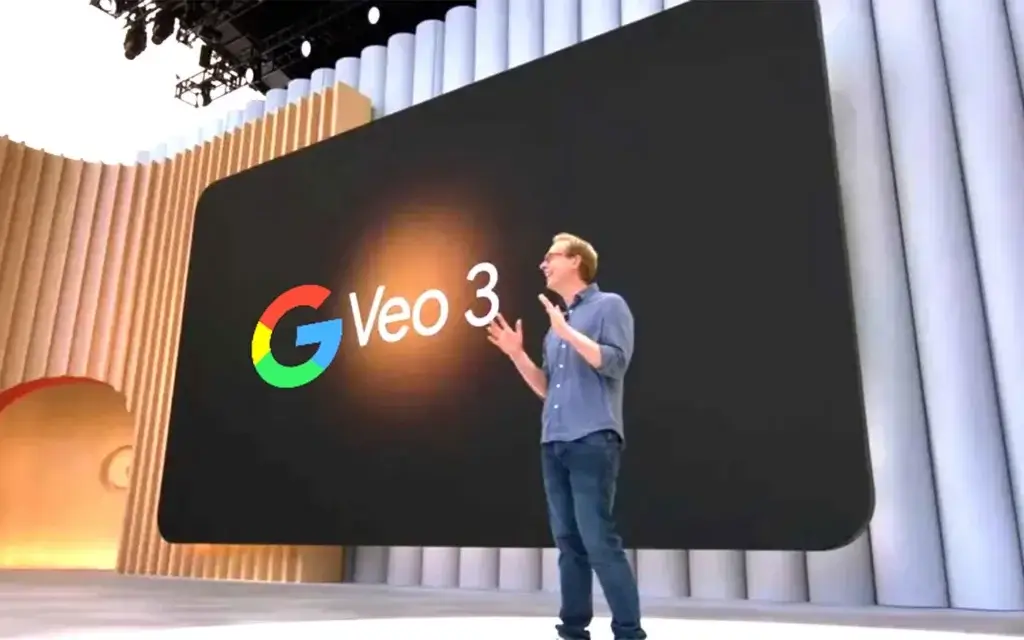
Google introduced Veo 3 in 2025 and subsequently added Veo 3.1 controls to Flow. In 2026 it introduced Gemini Omni Flash to Flow and later announced Gemini Omni 1.1 Flash controls including start and end frames and lower-resolution drafting. Gemini Omni is a different model family; it is not simply a renamed Veo 3. Google’s Flow help currently lists both alongside each other. These are vendor-described capabilities, not a benchmark proving that one model is best for every job. Google: Flow updates; Google: August controls; Flow model features.
Google’s current Gemini API video guide explicitly reports that Veo 3.1 Preview was shut down on 22 October 2026. It names the generate, fast and lite preview IDs and now points developers to gemini-omni-1.2-flash or separately available enterprise models. That notice concerns those API models; Flow still lists Veo options. We checked the documentation, not an authenticated API request. Verify the exact service and model ID when maintaining software. Google: current API video guide.
Which route should a business try?
| Situation | Starting point | Verify before work begins |
|---|---|---|
| A marketer wants to explore a short visual concept | Flow’s Omni Flash 1.2 or Veo 3.1 Lite | Region, account access, selected model, credit cost, ratio and allowed use |
| A team needs a presentation or explainer | Google Vids, if available to that account | Eligible features, quotas, sharing permissions and output controls |
| A product team wants generation inside its software | Current Gemini or enterprise API documentation | Active model ID, credentials, pricing, data handling and error/usage limits |
| A customer must see an exact product, person or real location | Start with approved real footage and use generation only where appropriate | Permissions, factual accuracy and platform disclosure |
Google announced a Vids update in September 2026 describing free 1080p Omni-based creation with a Google Account. That announcement does not establish every feature, quota or eligibility for your specific country, Workspace account or business use. Test the actual account rather than promising universal access. Google Vids announcement.
Select the feature for the shot
As checked on 10 November 2026, Flow’s feature guide points new projects toward Omni Flash 1.2 or Veo 3.1 Lite. Choose according to the required shot:
- Veo 3.1 Lite: text and frame-based clips at 4, 6 or 8 seconds; reference-based clips at 8 seconds. It does not support video-to-video editing or extension.
- Omni Flash 1.2: text, frames, references and video editing at 3–10 seconds, or up to 15 seconds with an eligible Google AI subscription. Frames are currently web-only. Subscribers can add 3–10-second extensions through Omni Extend.
- Existing projects: Google schedules Veo 3.1 Fast, Quality and Omni Flash 1.1 retirement for 5 December 2026. Veo Extend retired on 5 November 2026. Extension is therefore no longer a reason to choose Veo Lite. Flow model features and retirement notices.
Egypt and the UAE are on Google’s Flow availability list for adults, but features still vary. Uploaded-video editing is unavailable in the EEA, Switzerland and UK. Flow also does not support changing or dubbing speech in uploaded footage. For an Arabic/English version, plan approved narration and subtitles in your editing workflow instead of promising that feature. Flow availability and restrictions.
Choose based on the shot, not a “best model” headline:
- Text to video: explore an atmosphere or action when a loose concept is acceptable.
- First/last frames: use approved reference frames to communicate where a movement should begin and end; examine every transition for distortion.
- Ingredients/references: give the tool approved visual material where the selected mode supports it; compare the result against the originals rather than assuming exact reproduction.
- Video editing: only when the selected model supports the specific edit. Keep the source footage and confirm that the alteration does not change the truth of the scene.
Build a brief before you generate
Write six lines before opening a tool: the audience, the message, the one action viewers should take, the placement and aspect ratio, the approved source assets, and the facts or visuals that must remain exact. Add a shot list separating real footage, proposed generated visuals, and on-screen copy added later. If the offer depends on packaging, a property view, a medical claim or a person’s identity, use a verified source and obtain any necessary permission.
A vague prompt such as “make a viral ad for my café” leaves the audience, location and evidence undefined. A working brief might instead read:
Creative concept for a fictional café: a warm early-morning street atmosphere, a close shot of steam rising beside an unbranded cup, slow camera movement, no legible logos, vertical framing. This is an invented scene, not footage of a real shop. Reserve space for copy to be added in the editor.
That example is fictional and is not a NexScaleX client result. If the final advertisement promises a real offer or depicts an actual café, replace the invented product, premises and claims with approved material. Check faces, hands, packaging, reflections, readable text and continuity frame by frame.
Plan a 15-second edit: an example, not a performance claim
| Time | Material | Purpose | Review |
|---|---|---|---|
| 0–3 sec | Real approved product or venue shot | Establish what is actually offered | Confirm the image matches the business |
| 3–8 sec | Clearly creative generated atmosphere | Add context or transition | Reject misleading surroundings or altered product details |
| 8–12 sec | Real product/service footage with a verified benefit | Explain one reason to care | Check the claim with the owner |
| 12–15 sec | Brand mark and action, added in editing | Make the next step clear | Check contact destination and mobile readability |
Shoot or collect the authentic assets first. Generate only the missing creative shot, export the chosen version, then edit with voice, captions and a licensed soundtrack. Create vertical and horizontal cuts from an intentional composition, rather than assuming an automatic crop will preserve essential text. Human review remains necessary even when the clip looks convincing.
Budget for generations, not just clicks
Flow charges per generation, and one request can produce more than one charged output. On 10 November 2026, Omni Flash 1.2 costs 1 credit per second at 360p or 3 at 720p for clips up to 10 seconds. If three requests each produce two eight-second 360p generations, the budget is 3 × 2 × 8 × 1 = 48 credits. The old six-credit eight-second rate belongs to retiring Omni Flash 1.1, not 1.2. Google Flow credit costs.
Longer clips change the calculation: eligible subscribers pay twice the per-second rate for seconds 11–15. A 12-second 360p generation therefore costs 10 × 1 + 2 × 2 = 14 credits; at 720p it costs 10 × 3 + 2 × 6 = 42. These are worked examples, not an account quote or a price in AED. Count retries, extra outputs and any separately charged upscale; editing, voice and music are separate production costs. For the 15-second advertisement above, calculate only the generated shots you actually need. Check Flow’s displayed price before each run. Current duration and upscale rates.
Keep a simple log: brief version, input rights, model and mode, aspect ratio, generations requested, observed credits, approved output and editor notes. Set a cap for experiments. A lower-cost draft may help choose composition, but its appearance does not guarantee a later higher-resolution output will reproduce every detail. Never upload private customer or employee material until its use and applicable product terms are agreed.
Realism, permission and platform labels
A synthetic scene must not be presented as evidence of an actual customer, office, product outcome or event. Before using a person’s likeness or voice, secure the appropriate permission and verify the scope of use. Check music, stock, reference images and client materials separately; access to a tool is not proof that every input is licensed for an advertisement.
YouTube’s guidance describes disclosure for realistically altered or generated content in relevant cases, including realistic scenes that did not occur. Its rules are specific to YouTube and are not a universal legal checklist. YouTube disclosure guidance. Google describes SynthID for generated content, but a watermark or platform label is not a substitute for truthful creative, permission or policy review. Google DeepMind: Veo.
What to hand to your editor
A usable handoff is more than a folder of generated clips. Supply the approved script, original footage, selected generations, logo, caption text, permitted music and one clear action. Mark which shot is real, which is conceptual and which must match a product exactly. Agree the number of revisions and who can approve the final version.
For Arabic and English versions, approve each language separately. Check spoken names, numbers, currency, subtitle direction and mixed Arabic/English brand names on a phone. Place the offer and contact details in the editor as editable text, rather than relying on generated lettering. Deliver the agreed final formats plus an editable project when that is included in the scope; keep the source material and its permissions with the handoff.
Use one acceptance decision per shot: keep, edit, regenerate or replace with real footage. If a generated product cannot pass the factual check, repeated generations are not automatically the right next purchase.
Measure the final video against the objective
Decide what success means before launching: for an explainer it could be whether qualified viewers reach an important point; for a lead campaign, track valid enquiries and subsequent qualified conversations with appropriate consent. Report platform metrics separately from sales. Compare variants over a defined period and similar audience conditions; a high view count or AI-generated shot alone does not prove revenue, and small samples can mislead.
Keep a record of revisions and the final exported file. If a video goes to multiple channels, check each platform’s current disclosure, placement, aspect ratio and advertisement rules. Do not claim a “before and after” or a client result without a documented baseline and permission.
Frequently asked questions
Is Veo 3 still the same as Google’s latest AI video offering?
No. Veo is a model family, while Gemini Omni is another. Flow’s model list and exact available tools can change. The API retirement notices for specified IDs should not be generalized to all Google products.
Can AI make a finished advertisement on its own?
It can produce useful shots or edits, but a business still needs an accurate offer, licensed assets, human review, a clear edit and a way to measure outcomes. The result depends on the brief and production decisions.
Can I start with my own footage?
Yes, where the selected model and account support video editing. Keep an original backup, obtain any required permissions and verify the output does not change facts. An ordinary edit without AI may be the better choice for a particular shot.
How much will it cost?
The cost depends on the product, model, feature, number of generations and account. Flow credits are not equivalent to an AED price; check the current interface and terms. Enterprise and API pricing are separate.
Can NexScaleX edit footage I already have?
For supplied footage and a defined editing brief, see our video editing service or discuss an editing project. To plan the larger workflow, read our AI video production guide. These links describe services, not a claim that NexScaleX has executed the fictional example above.